Super Smash Flash 2 Controls: Default Keys, Select Screen and Options
Published · 3 min read
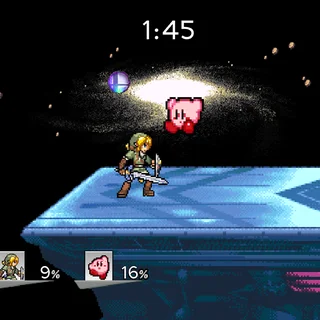
The Super Smash Flash 2 demo on this site has no tutorial and no controls screen during a fight, and its default keys are not the arrow keys most Flash games use. This guide lists every default key for both players, explains how the select screen actually works, and goes through each option, all checked in Demo v0.4b itself.
Player 1 keys
Player 1 plays on the left side of the keyboard:
- W A S D: up, left, down and right.
- W is also jump. The controls screen notes that Up and Jump may share a key, and by default they do.
- P: standard attack. O: special attack.
- I: shield. 1: taunt. Backspace: pause.
- Grab is set to None. If you want a grab, assign it a key yourself.
The arrow keys do nothing for player 1. They belong to player 2, which is the most common reason a first match feels "broken".
Player 2 keys
Player 2 gets the arrow keys and the number pad: arrows to move (Up also jumps), Numpad 3 for the standard attack, Numpad 2 for the special, Numpad 1 to shield, Numpad 4 to taunt and Numpad 0 to pause.
Most laptops and Chromebooks have no number pad. Fix that before you start: on the title screen click Customize Controls, pick the Player 2 tab, press Edit next to an action, then press the new key. Players 3 and 4 have tabs too, so four people can share a large keyboard.
Setting up a fight
Press Play on the title screen to reach Choose Your Character. Four coloured tokens, p1 to p4, sit above four player cards. You do not click a portrait. You drag a token onto it. Drag p1 onto your fighter and its sprite appears in the Player 1 card.
Player 1's card says HMN (human). The other cards start as CPU, each with a LEVEL slider that begins at 1. Drag p2 onto a second fighter to get a CPU opponent, or click its CPU tag to make it a second human. When at least two cards have fighters, press GO! and choose a stage. The Random box picks a stage for you, and the Random square on the select screen does the same for fighters.
How damage works
Each fighter has a portrait and a percentage at the bottom of the screen, starting at 0%. Hits raise it. A fighter at 16% barely moves when hit; a fighter past 100% flies. You lose a stock by leaving the screen, so the percentage only tells you how close someone is to being launched out.
A useful rhythm: land quick standard attacks with P to build damage, keep your shield (I) ready when the CPU dashes in, and save strong attacks for when the other fighter stands near an edge.
The Options screen
Options sits in the top-right corner of the select screen:
- Time or Stock: a timed match (2:00 by default) or a stock match (3 lives). Only one is on at a time.
- Damage Ratio: x1 by default. Raise it for faster knockouts.
- Item Frequency: Very High by default, down to Very Low.
- Start Damage: every fighter begins at this percentage.
- Display Player #: Off by default; switch it on to label which fighter belongs to which player.
- Separate BGM, Voice and FX volume sliders.
More from the blog
- SSF2 Demo v0.4b: All Six Fighters, Six Stages and Items
Mario, Kirby, Link, Sonic, Ichigo and Lloyd; Hyrule Temple to Whispy Woods; the Smash Ball, the music, and four ways to set up a match.